I love seeing a flat sheet of wood turn into something that looks like it has no business having started as a flat sheet of wood.
The easier, the better.
At Glowforge, we’ve spent an enormous amount of time over the past while working on something new for you. You saw the start of it when we introduced Glowforge Studio last week, and there’s a lot more we’re ready to unveil today.
There are new ways to make three-dimensional projects, personalize a whole batch of gifts, change artwork with words, and quite a bit more. And it’s all included, with no extra costs - new free features for everyone, and new Premium features for subscribers.
Let me show you.
Glowforge: Now, in 3D
Imagine drawing a shape with your finger. A little wider here, narrower there. As you draw, Studio spins that line into a three-dimensional vessel. Then it generates the flat pieces for your laser to cut.
That’s 3D Create. You’re drawing the shape of the thing itself, and the pieces are generated immediately, ready to cut.
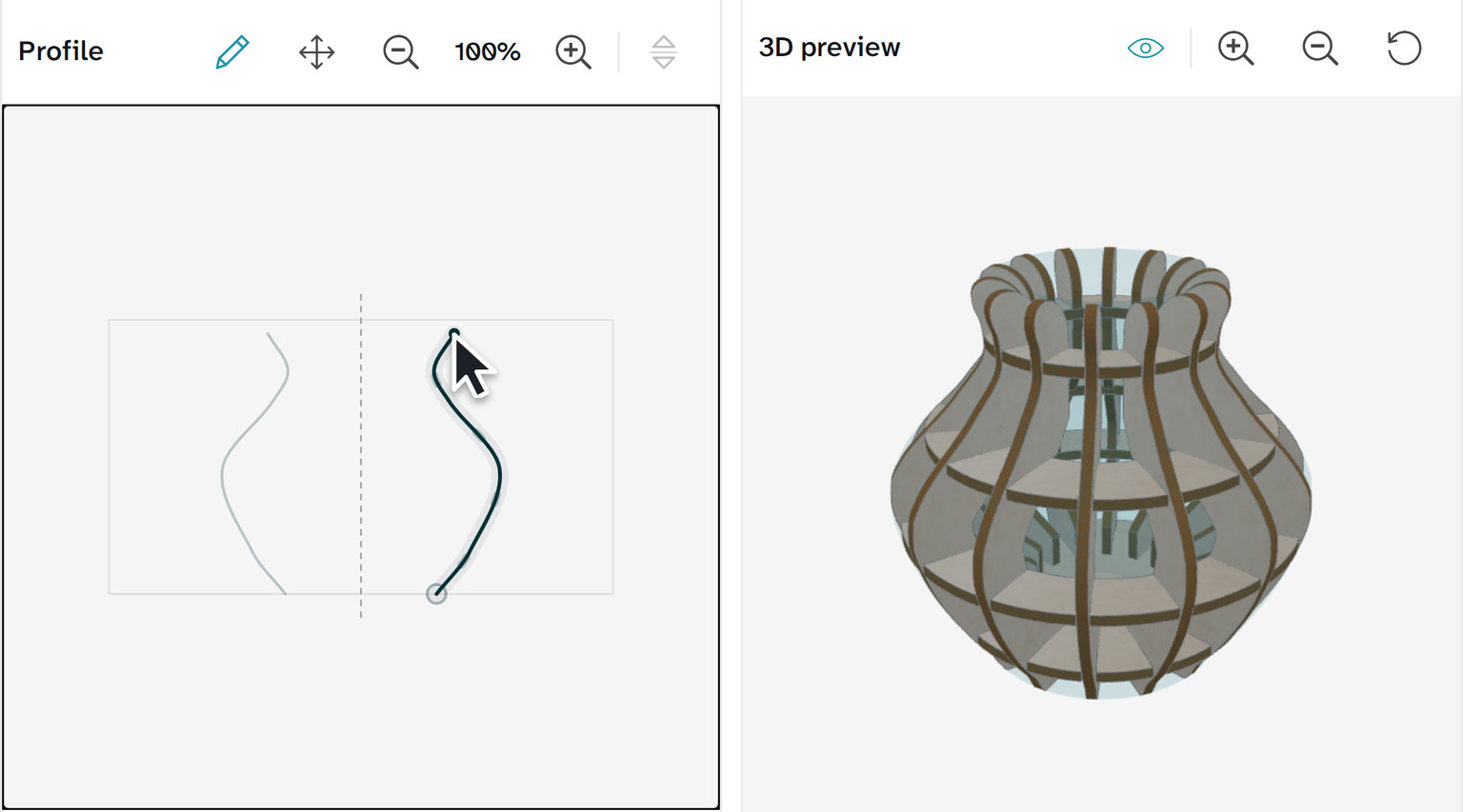
The basic finger-drawing feature is free, including adding the resulting pieces to your workspace. Premium gives you a suite of powerful controls to perfect the result.
Or you can start with something that’s already three-dimensional. 3D Slice takes a 3D model, like an STL file for a 3D printer, prepares it for your laser. You can see how the pieces fit together and inspect the cutting layout before you print.
We’ve included a few models you can use for free. Premium opens gives you 100 more, and more importantly, lets you slice any 3D object you want, with additional options and settings.
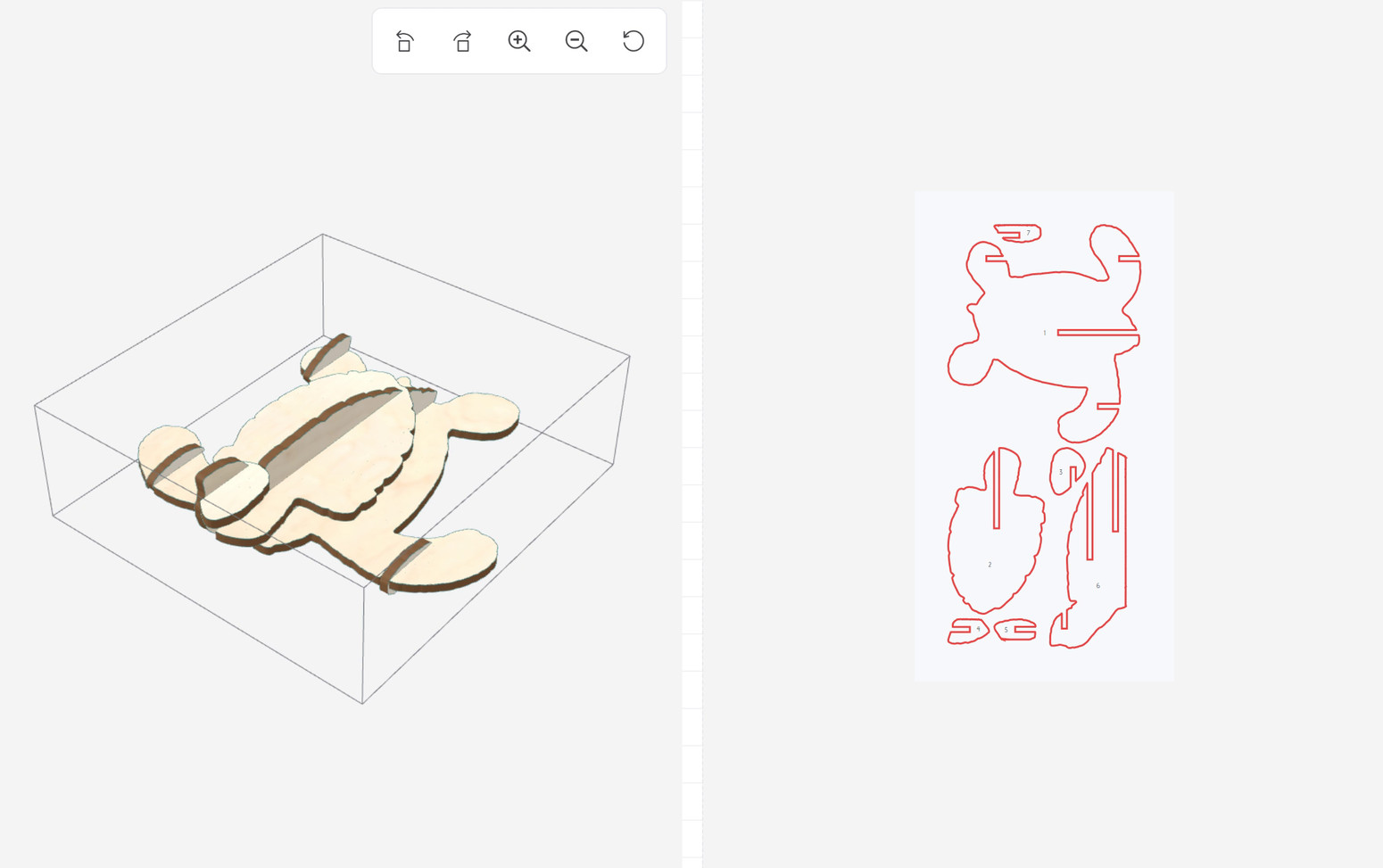
Last week’s adjustable trays and pouches let you customize a particular kind of project. These tools take that a big step further: start with a model, or draw a profile yourself, and work toward a three-dimensional creation from there.
A whole set of names, without a whole evening of typing
You’ve made the perfect ornament. Now you need one for every person in the class.
You probably know about Mail merge from word processing and spreadsheets. This is like that, but not terrible.
With mail merge, you create a design like a nametag, pick a spreadsheet, and poof - it customizes it for each name on the list. The same idea works for place cards, gift tags, or labels with different information on each one.
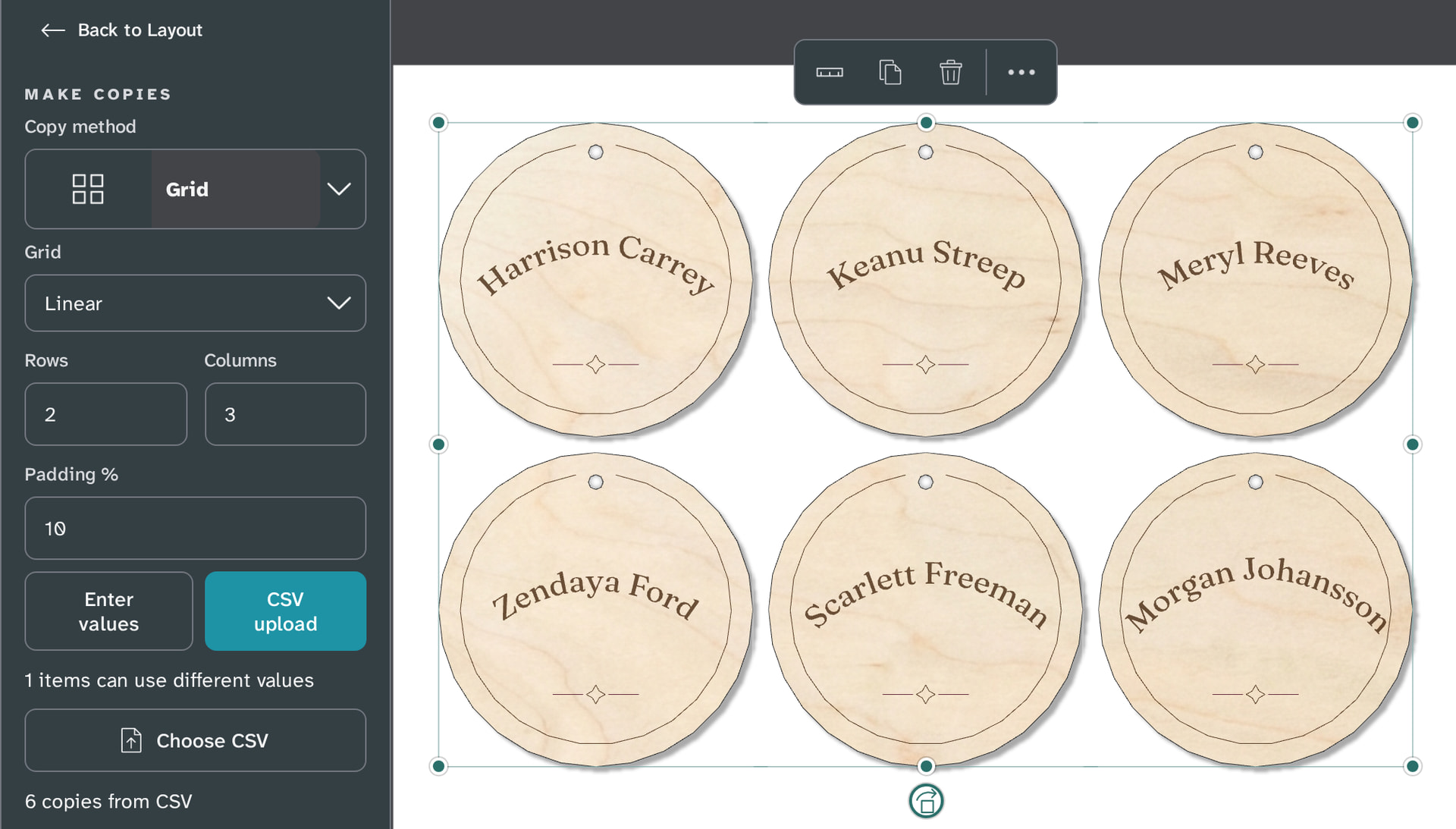
It’s a Premium feature to help turn a single idea into a massive and personal impact.
Lettering and artwork that follow your design
Two more Premium additions let you work along a path you draw:
• Text on a path attaches your lettering to a curve. Put words along the edge of an irregular ornament, follow a wavy line, or move the lettering around until it sits just where you want it. Again, you may have seen it before - but now, it’s simple.
• Copy along a path repeats artwork along that line. Draw one little leaf, then make a leafy border that follows your own shape.
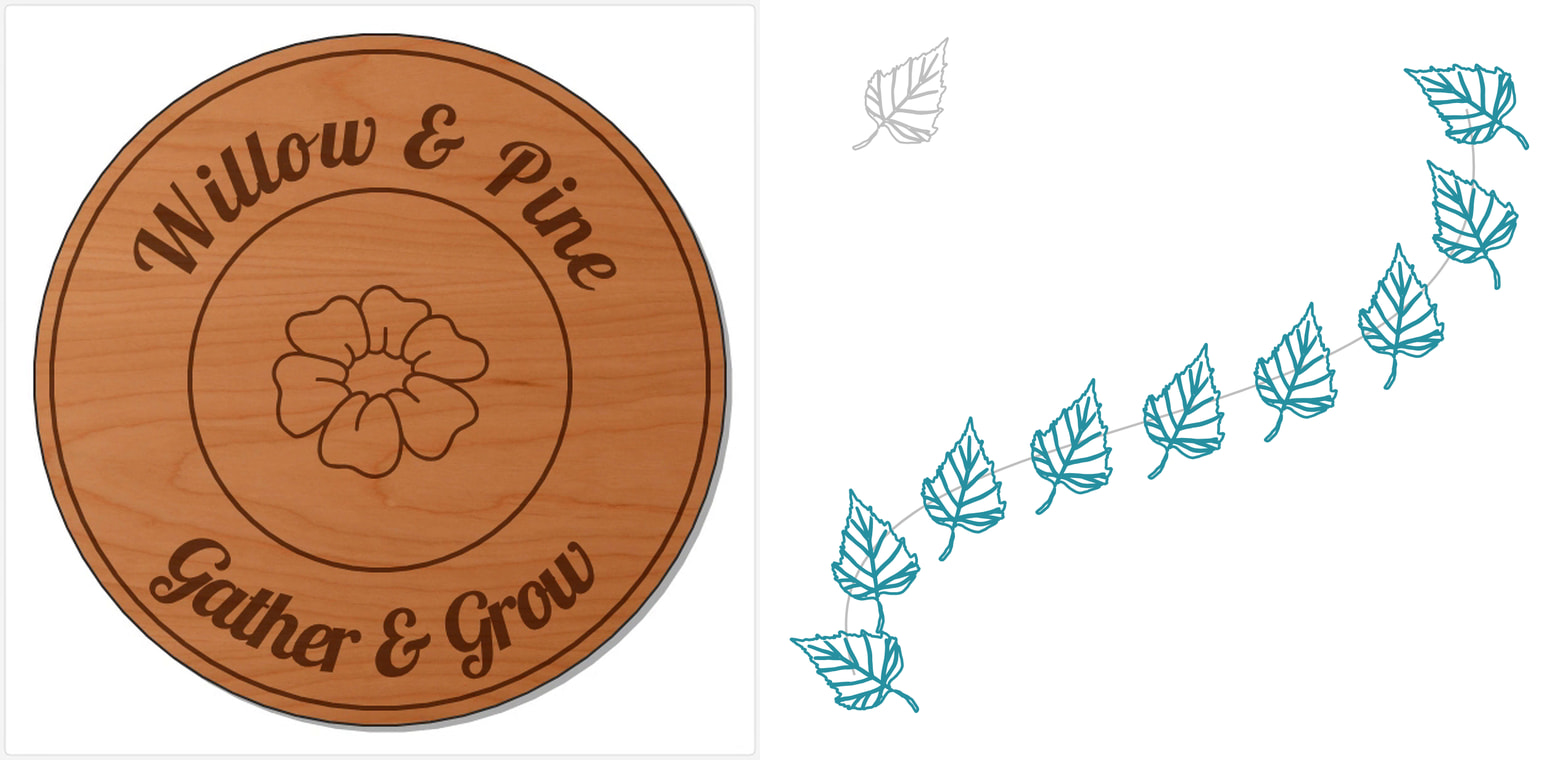
These go beyond the ready-made text styles and circular arrangements we showed last time. You supply the path; Studio follows it.
Fill a shape—or ask for a different take on it
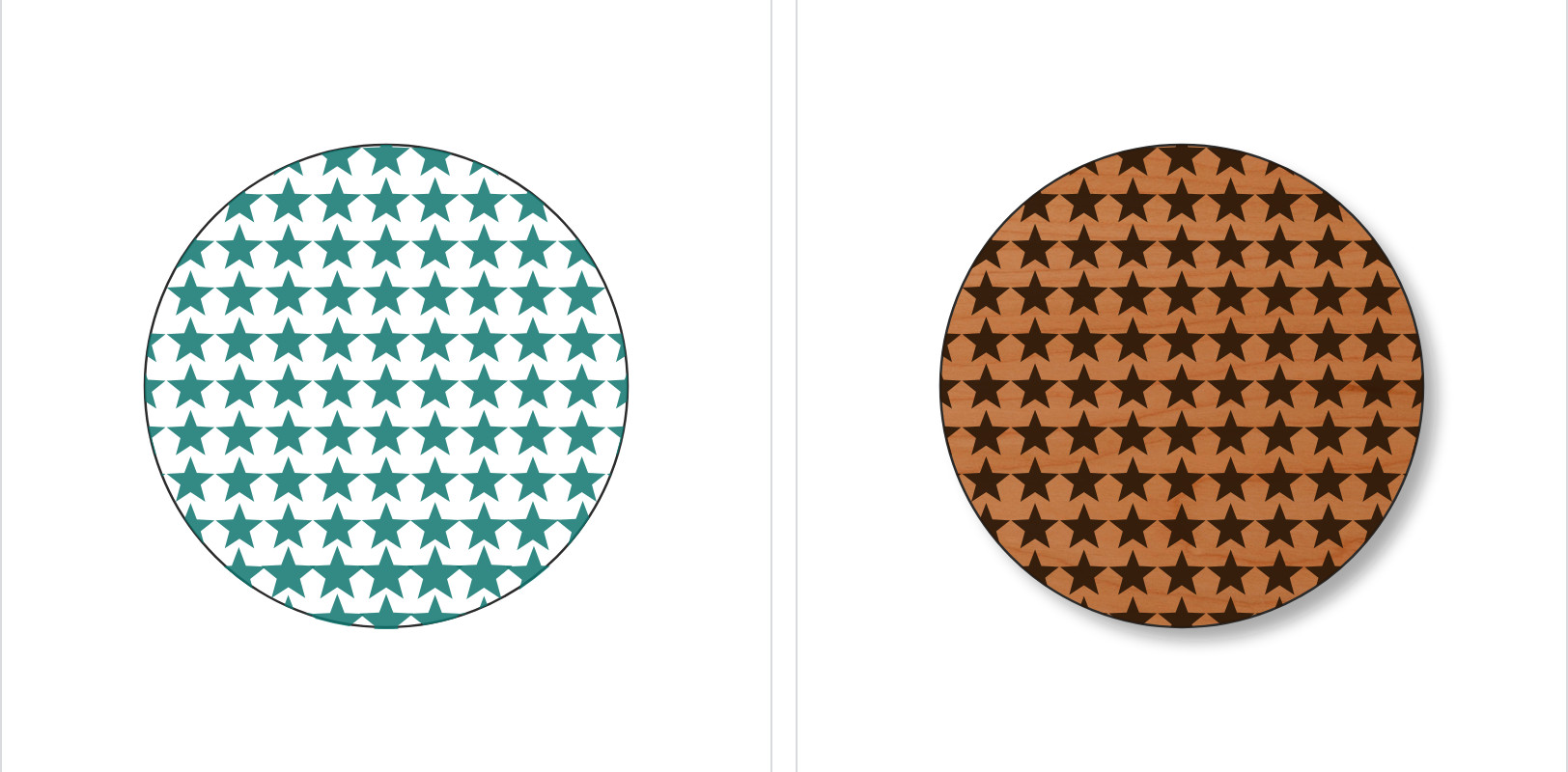
With Pattern Fill, you can fill a closed outline with a repeating motif, then adjust its size, spacing and angle. Think of a large leaf filled with little leaves, or a geometric pattern inside the outline of a sign.
And Magic Vector lets you select vector artwork and describe a change you’d like to see. It generates variations you can compare, then add to your design as editable artwork. Your original stays put, so you can try a different direction without giving up the one you started with.
Both are Premium tools. You can still draw and edit paths by hand with the free tools; these give you some very different ways to get to the next version of your design.
A package that fits the present
Once you’ve made something, you might want something to put it in.
The new Packaging designs give you adjustable patterns for fold-up cartons, bags and sleeves. Set the dimensions for your project rather than drawing every cut and fold from scratch.
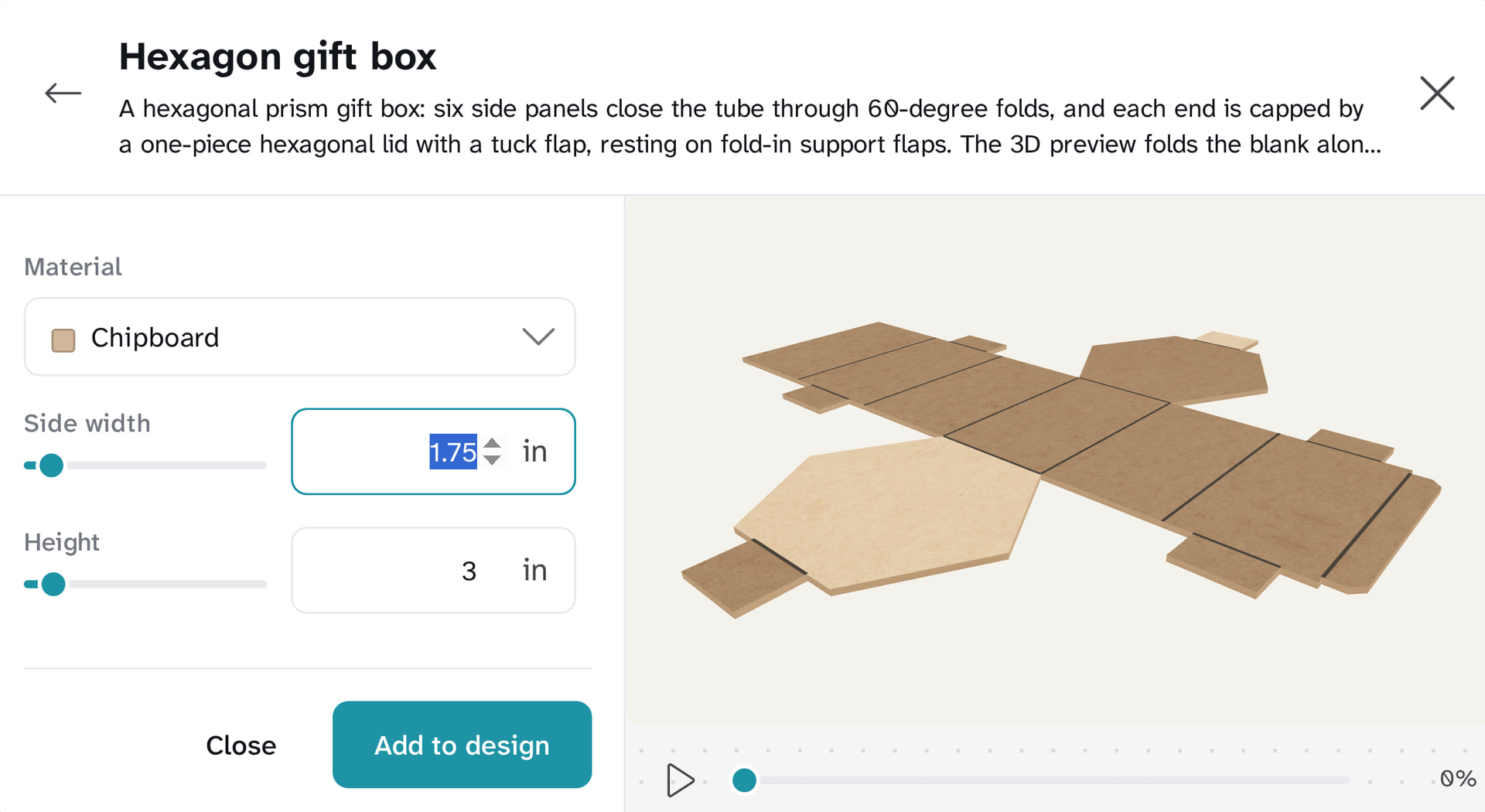
The Drop-in lift-out lid and Hexagon gift box designs are free for everyone. Premium includes a broad selection of box and packaging designs.
What if undo was amazing?
Sometimes the interesting part is all the steps between a blank canvas and the thing you finally decide to make.
Design history, included with Premium, lets you revisit the steps of your project, visually rolling back and forth. You can finish a design, then play the whole process back and update your decisions at every point.
Stuck? Just Ask.
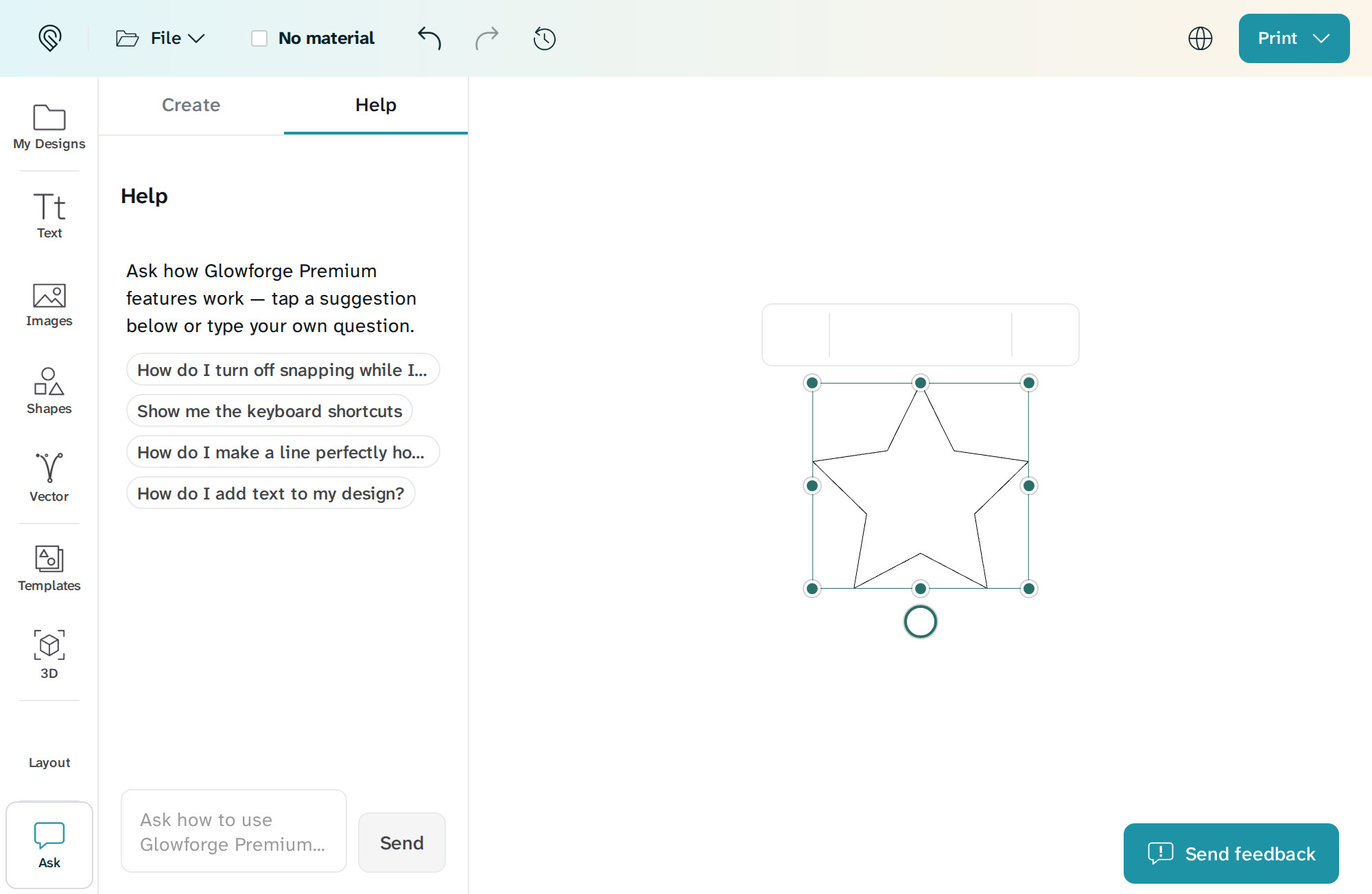
There’s a lot here. If you’re wondering how to do something, open Ask and ask in your own words. Studio’s built-in assistant can answer questions and help you figure out the next step, right beside your design.
Want to see how it’s done? Open Guides on the Studio home screen for project videos, including three-dimensional projects, custom boxes and layered designs. You can get an answer when you’re stuck, or follow a project to get started.
Let’s make something!
Open Glowforge Studio with your Glowforge account. Your free tools are there whether or not you subscribe to Premium, and if you’re already a Premium member, these new Premium features are included in your subscription.
Try drawing a profile. Personalize a dozen nametags (and put the names on a curve). Construct a perfectly-sized box complete with assembly video.
One last piece of news: we’re also welcoming makers with select LONGER lasers to Studio through a new partnership. I’m excited about this because a broader community of people using Studio helps us support more of this kind of improvement for you. More people making things, and more we can build for everyone.
Thanks for being part of it.
–dan
P.S. Please share your projects, questions, bugs and ideas here:
Something new (and free): Design Tools Discussion - Everything Else - Glowforge Owners Forum