Sadly no on all counts, and also LOL at “universal standard”!
The UI is designed the same whether you’re on a desktop, tablet, or phone so they’re are definitely things that only make sense on the one you’re not using.
It took me about 3 days of hard use to get used to it. Set Focus being on the top menu saves so much time!
Welcome back and congrats on your making it through the storm!
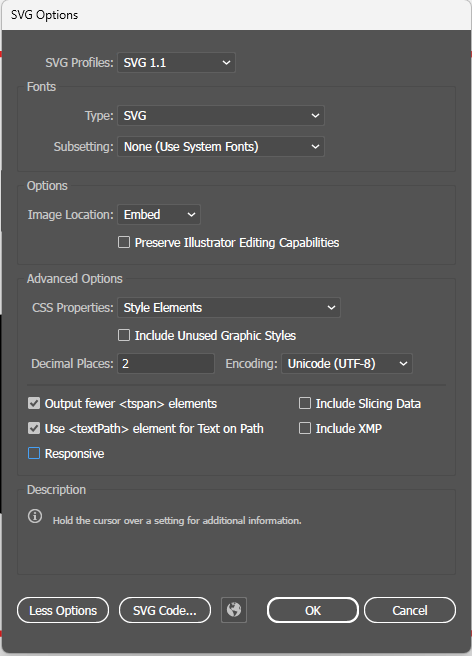
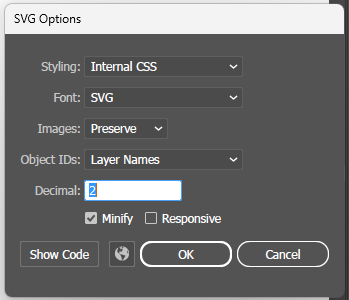
FYI, the Illustrator error was brought in by an update on their end. If you go into the settings there’s a checkbox for “responsive”, turn that off and pasting will work again
I am pretty certain the ruler tool only showed up when you clicked on a design element, which has not changed. I certainly didn’t notice it changing, other than the location (over on the right - which I like, instead of taking up space in the lower-left corner.)
I also dislike all the premium stuff taking up space but they are trying to rope more people into an ongoing revenue stream, just like ads in streaming services. I have no use for any of those tools, but it’s easy enough to simply ignore them.
There are some things that are pretty well accepted standards. As someone who has done a lot of UX consulting over the years, I can tell you that having UI elements move around and appear and disappear is confusing and pretty well frowned upon.
WRT, the Responsive option, I think that’s the correct answer to a different question. If you’re creating an SVG file, the Responsive option has to be turned off (and I think Illustrator changed the default at some point). But it used to be the case that you could Copy from Illustrator and Paste into the GF UI, and it would work great. At some point, it changed and the size was wrong. It’s possible that’s because of an Illustrator change, but I don’t know of any way to control what happens when you Copy. I don’t see a Responsive option in Illustrator Settings. I looked in Settings>Clipboard Handling and all I see is the Copy:Include SVG Code option.
Previously, if you clicked around in your design, the measurements would effectively stick around because they would reappear when you clicked on another item. Now, I have to click on an item, click on the toolbar, read the measurements, then click on another item, click on the toolbar, etc. That is far more clunky!
Sounds like we’re in agreement on the advertising. I don’t know why they do it this way, it surely isn’t effective. The annoying thing at this moment is that they are trying to promote them so clicking on one by mistake starts doing something rather than just telling me I haven’t paid.
to some extent, all adobe apps do this. they have a context sensitive floating menu bar that changes based on what type of objects you have selected. The whole bar doesn’t appear/disappear, but what’s in there changes. altho i will admit that i find it annoying that i keep telling it to “pin” where i left it and then it ends up moving on me later into the middle of the screen.
it’s not in settings, it’s in both the export to SVG and save as SVG dialog boxes. just make sure responsive is unchecked. and dangit i just noticed that my decimal points got reset to 2 recently. i hate when they reset panels like that in updates.
I find it annoying in the Adobe apps too, though they did a bit of a better job. What is in the floating toolbar for a given type of object doesn’t change, but the whole thing changes. I think the pinning failure is just a bug, but I don’t understand why they don’t let me dock it/pin it outside of the content area. I worked on one of the first apps with floating tool palettes (FullPaint) and there is a reason that dockable palettes won, though the ability to have them float has persisted. Sometimes, it’s handy to move a palette right next to where you’re working, especially on a large screen.
As you note, I see the Responsive option in both places. I have it unchecked in both places and neither changes what happens when I Copy and then Paste into the GF UI. It does look like the Export as SVG options does change the SVG slightly, but, no matter the setting, the size in the GF UI is not the size it was in Illustrator. When I create an SVG file (either way and with Responsive unchecked), it is correct. On a lark, I turned off Include SVG Code in Settings > Clipboard Handling, and that made it worse.
This has been broken now for a year or two, but old habits die hard. I routinely copy and paste before I remember that I can’t anymore.
i wish i had a different answer for you than what we have for the SVG (save as or copy/paste). it’s always been an illustrator issue with the responsive checkbox and unchecking it has always fixed it. i’m not seeing any issues w/size with copy/paste or with uploading SVGs on either of my laptops.
To the best of my understanding, this is an illustrator issue, not a glowforge issue. It’s been around since before there was glowforge and the solution has always been the same.
Although I don’t have illustrator (quit using it when Inkscape was first available), I do use SVG files from other apps/sources and the GF imports them correctly.
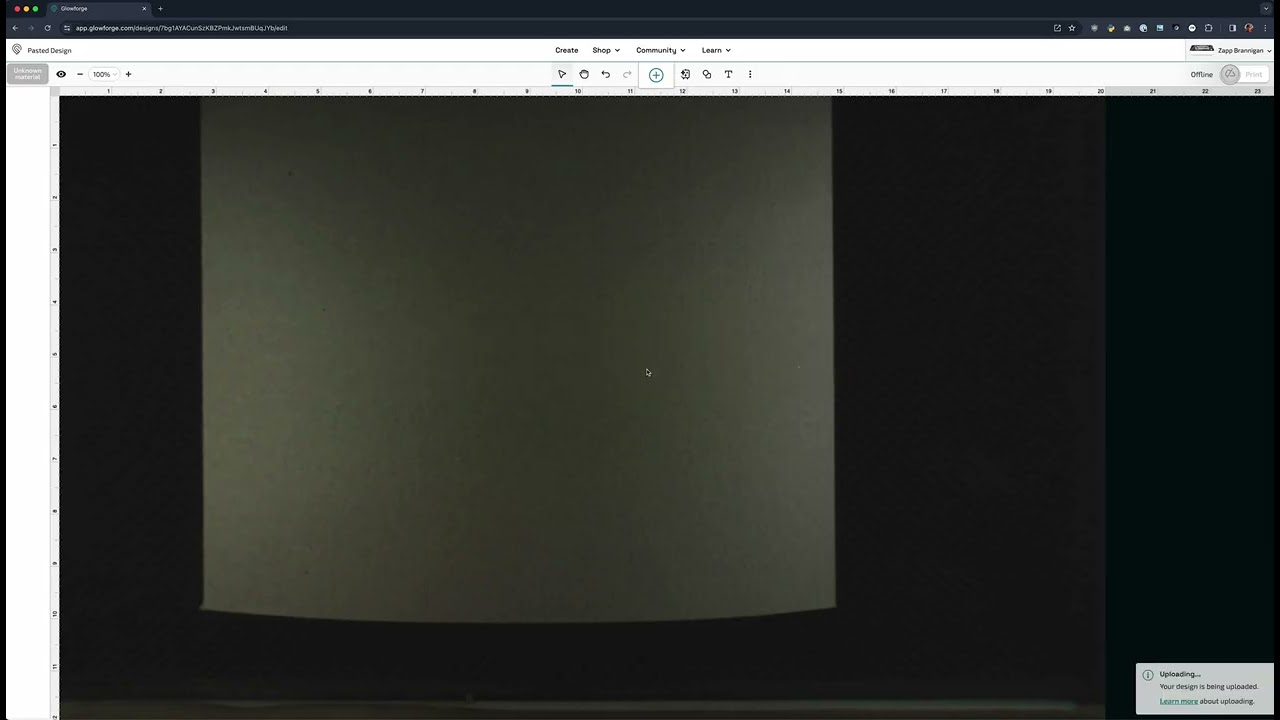
I tested this definitively a year ago, and made a screen recording to show exactly what the behavior is. It’s possible that something has changed since then, or there’s something different about your setup, but it still works correctly for me.
I really appreciate the UI update having the “Setting focus” button right up top now. Thank you!
Something I still wish for is a preference option to make the mouse scroll wheel Zoom instead of vertical Pan. The other software I more regularly use has scroll wheel as Zoom, so every… single… time I use the GF UI I immediately and continuously scroll what I’m looking at right out of the camera view window.
Yes I know Ctrl-mouse wheel zooms, and I fully realize that many are totally fine with/prefer that, but I have also seen others inquire about scroll wheel for zoom, and being able to change that in preferences would be a nice option. Thank you.
You may not be aware of how widely standard control-wheel zooming is. It’s zoom in browser windows, zoom in windows 11, zoom in Inkscape, and probably many others.
While it may catch you out it’s pretty ubiquitous.
While i may think that it doesn’t need a preference personally I do think it’s great to be able to change things to accommodate more users, so I’m with you in spirit. I don’t speak for Glowforge but, practically speaking, any time you make a preference like that you open up a whole new set of support edge cases. Glowforge runs a pretty lean ship so their threshold for new features is pretty high — they don’t have infinite resources to spend on support.
So I guess my advice is “cool idea and maybe they’ll do it but I wouldn’t hold my breath on things like this.”
Edit: I asked chatgpt for a list of major programs that support control wheel zooming and here’s what it said:
Web Browsers: Chrome, Firefox, Edge, Safari
• Microsoft Office: Word, Excel, PowerPoint
• PDF Readers: Adobe Acrobat Reader, Foxit Reader
• Code Editors/IDEs: Visual Studio Code
• Design/Image Editors: Inkscape, GIMP
Of note: the Adobe design suite apparently uses the alt key.
It was in the earliest days that I asked support about this so I’m (still) not holding my breath but figured it can’t hurt to mention again. Thank you for the info and being with me in spirit.
Thanks for all the info. I’m a developer and have been using Illustrator for decades so I’m pretty familiar with it. I had done the same thing you did in the video with different results. But I ran through it again to check. One extra thing I learned. The Format Settings in Export for Screens are the same saved values as those in Export As. Although the Responsive checkbox appears in three places, there are only two persisted values.
BUT … on my machine SVG files I create with Eport for Screens or Export As are also incorrect. I happen to never do that, using Save As instead, so I never noticed. I only noticed copy/paste. I did some more digging and what I found out really makes it look like a Glowforge bug. I tested this in both Chrome and Safari on macOS Sequoia.
Here is a very simple SVG file created by Adobe Illustrator Save As (I’ve added line breaks for readability here). It works correctly.
If I delete the comment, it no longer works, and the SVG comes in at 75% of the proper size. No SVG is changed, so this shouldn’t happen. If I restore the comment elsewhere in the file, like after the tag, it works properly again. If I change the comment so it says (e.g.) Adobe xIllustrator, it also stops working properly. Adding a line break in the comment as I’ve done above makes no difference.
It really looks like the Glowforge app is looking at the comment and treating the SVG differently if it thinks it was generated by Adobe Illustrator. And it doesn’t think copy/pasted SVG came from Illustrator.
The truly odd part, tho, is it seems like it’s only happening to you. Not impossible it’s others too, but you’re the only person I’ve seen reporting that unchecking responsive hasn’t fixed the problem.
Do you have extensions running in your browser? Just wondering if there’s some other factor on your system creating the issue. Maybe if you upload a simple sample file, some of us could try uploading and see if it loads correctly for us. Give us both SVG to upload and an AI for me to copy/paste from.
Not particularly material here, but this one seems like a “hallucination.” I had Sublime Text open and checked. I do see some people setting it up to zoom font size, but that’s kind of a hack.
That’s correct. A lot of this was puzzled out on the early days of the forum when we spent a lot of time dissecting different files to try to understand the behavior. There are several heuristics Glowforge uses to try to work around the lack of units in these files, including scaling to a 20"x12" artboard or looking at the comments to determine the software that created it.
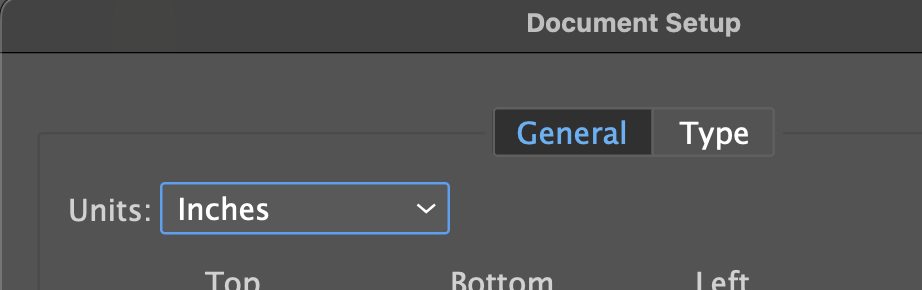
That said, your file did give me a clue as to what I think the problem is. In order to export with physical units, you need to have your document set to physical units (e.g. Inches or Millimeters). I suspect yours is not.
If that is set to pixels, it renders the responsive checkbox meaningless, and would also affect copy and paste.
I did a video a while back (good lord, 7 years ago?) on setting up Illustrator. I really need re-do that with a modern version and the stuff I’ve learned since.
 making it through the storm!

 Thank you for the info and being with me in spirit.